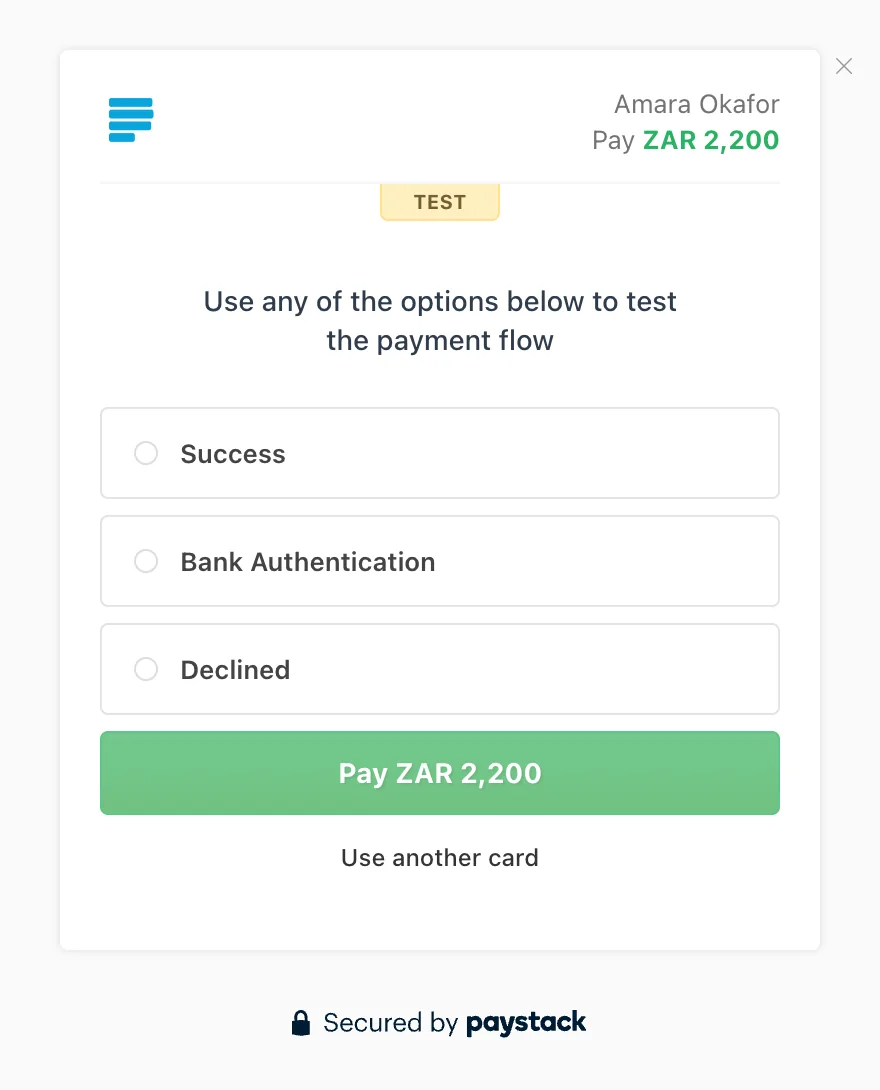
Pay with Paystack
Book an appointment, choose Paystack and pay on Paystack’s own test page; the booking is confirmed once Paystack confirms the amount.
demo.alovio.org/payments · For Booknetic
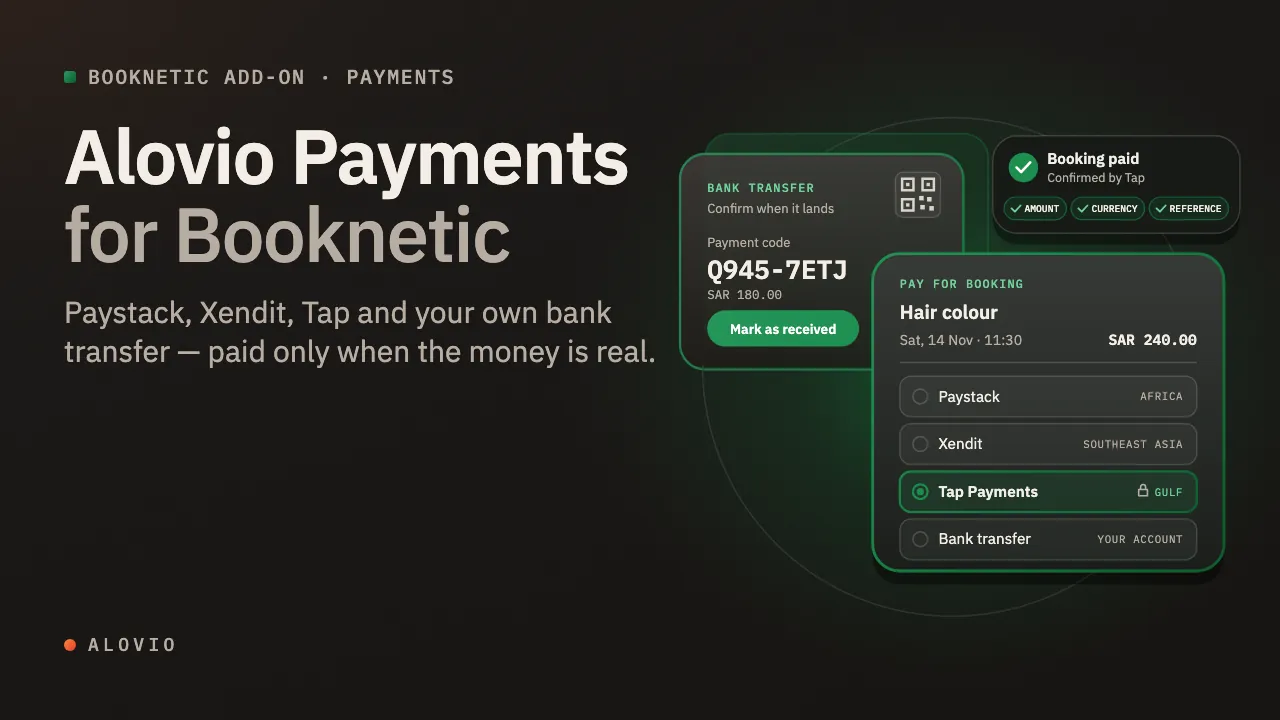
A salon on Booknetic SaaS taking rand: Paystack on its own test checkout, plus its own bank transfer, QR and cash — paid only when the money is confirmed.
Someone booking at the salon.
Book an appointment, choose Paystack and pay on Paystack’s own test page; the booking is confirmed once Paystack confirms the amount.
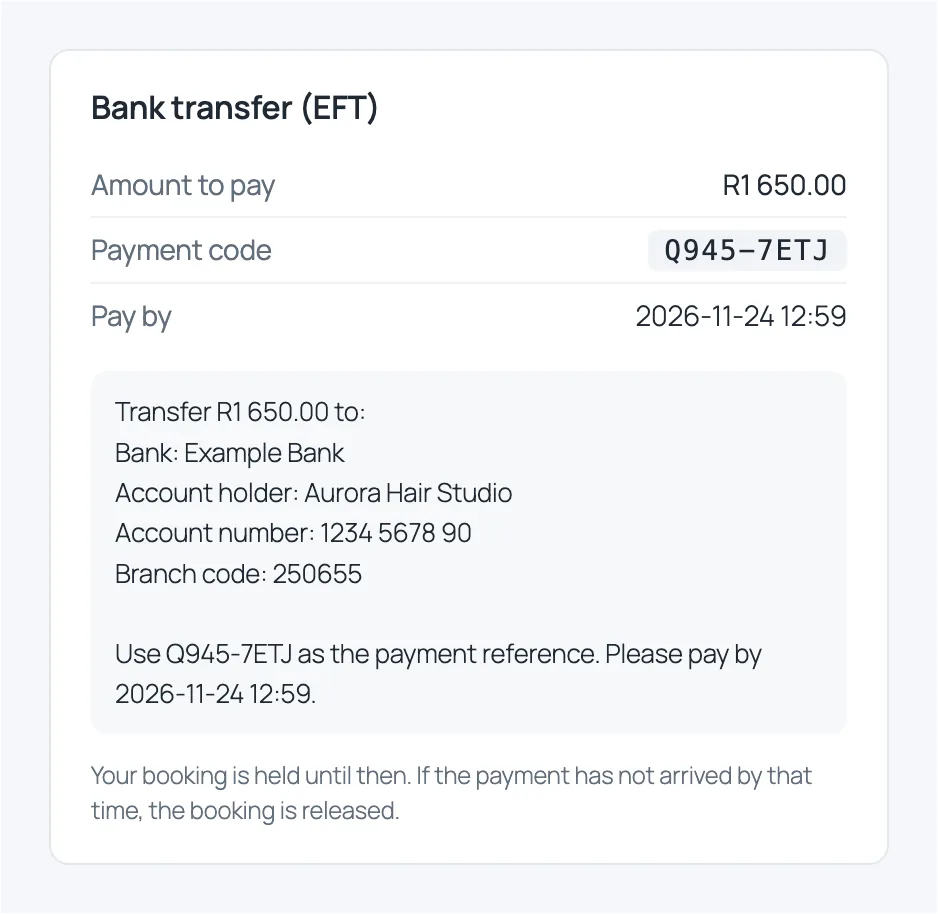
Choose one of the salon’s own methods: right after booking you get the amount, a payment code, the deadline and the bank details or QR.
Aurora Hair Studio, in its own Booknetic panel.
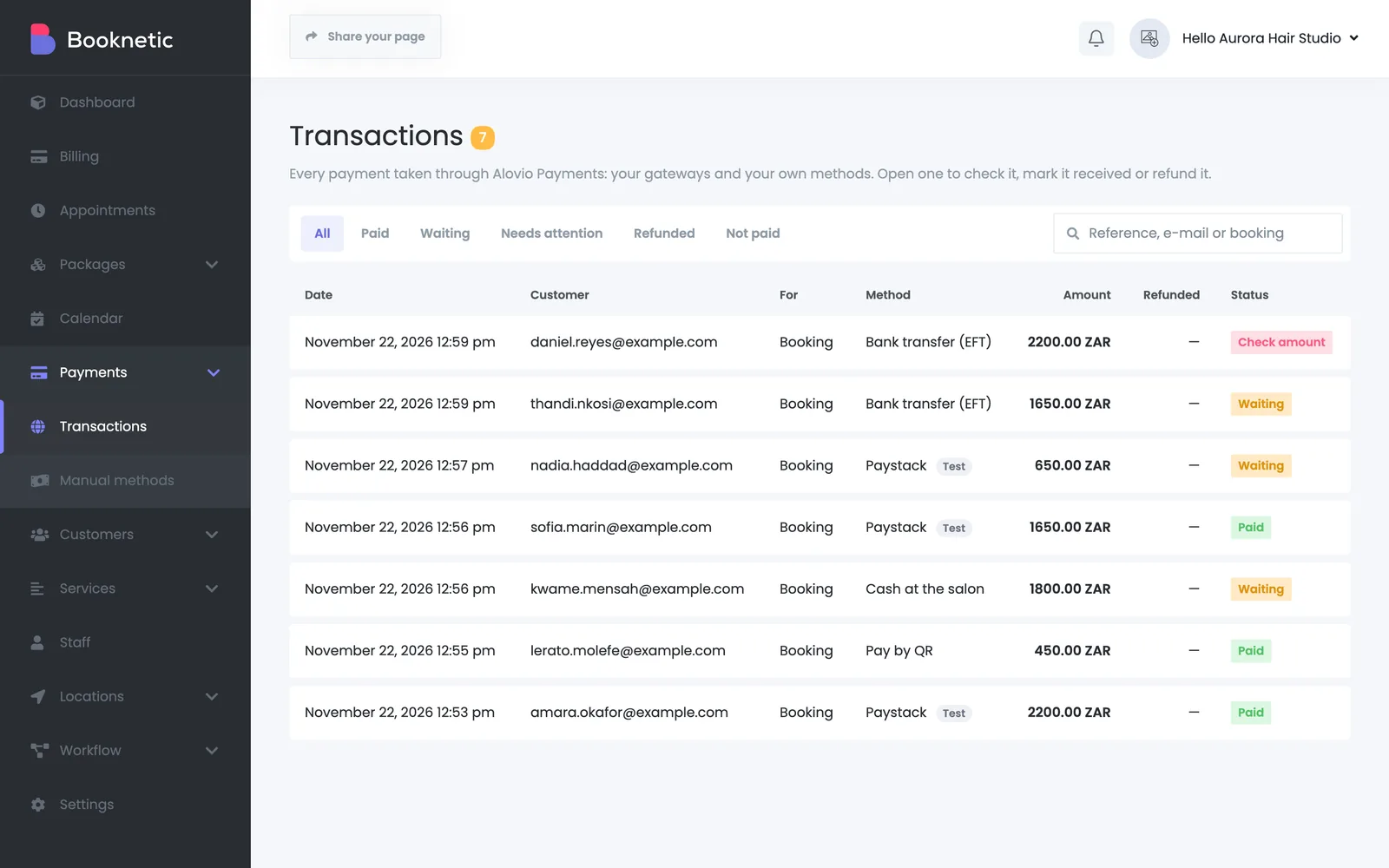
Every payment of the salon: mark a transfer as received, accept less than owed, refund a Paystack payment, follow each payment’s history.
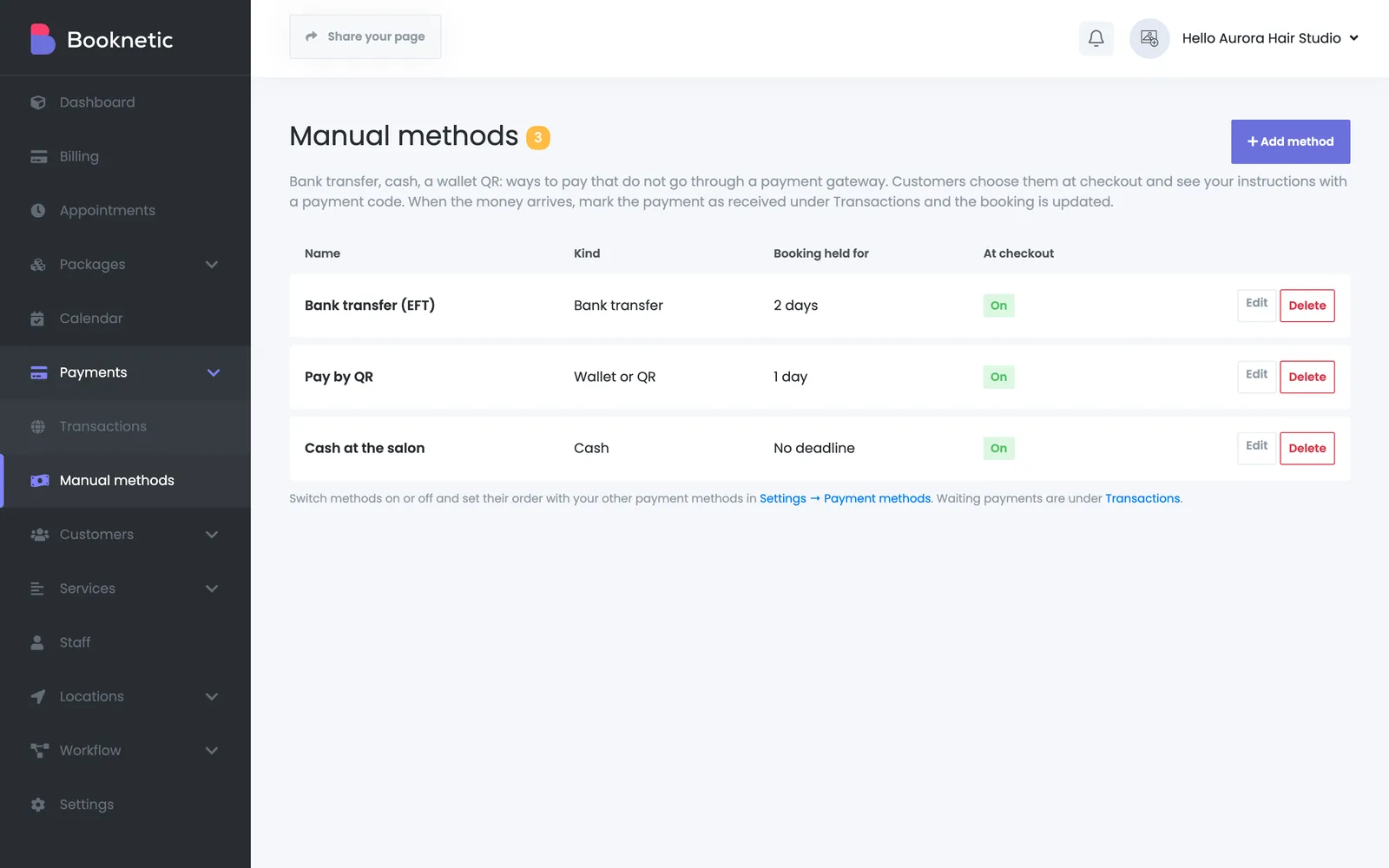
The salon writes its bank transfer, QR and cash methods: instructions, a QR image and how long a booking is held.
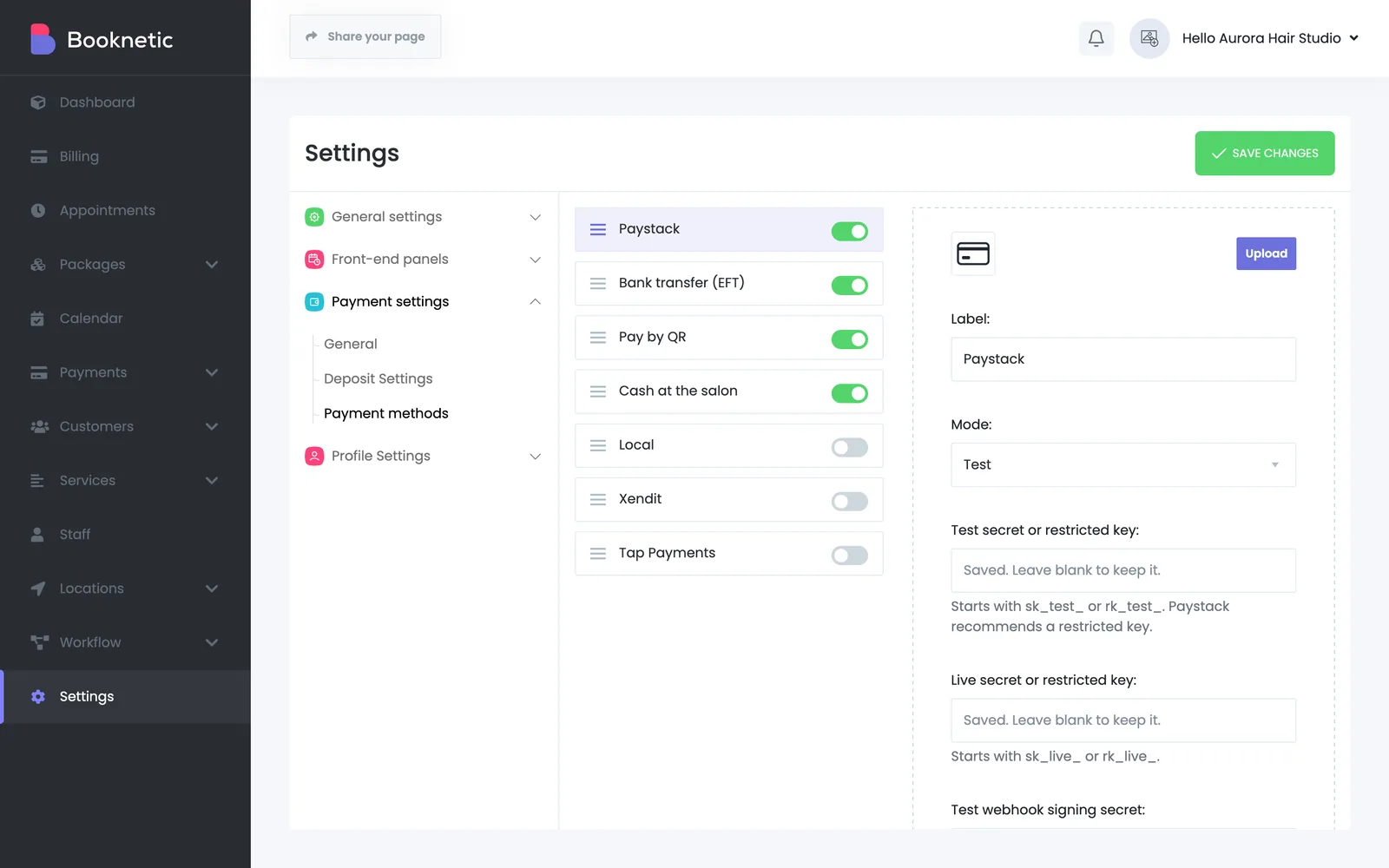
Where a business enters its own Paystack keys; in the demo the key is locked so checkout keeps working.
The SaaS owner, in WordPress admin.
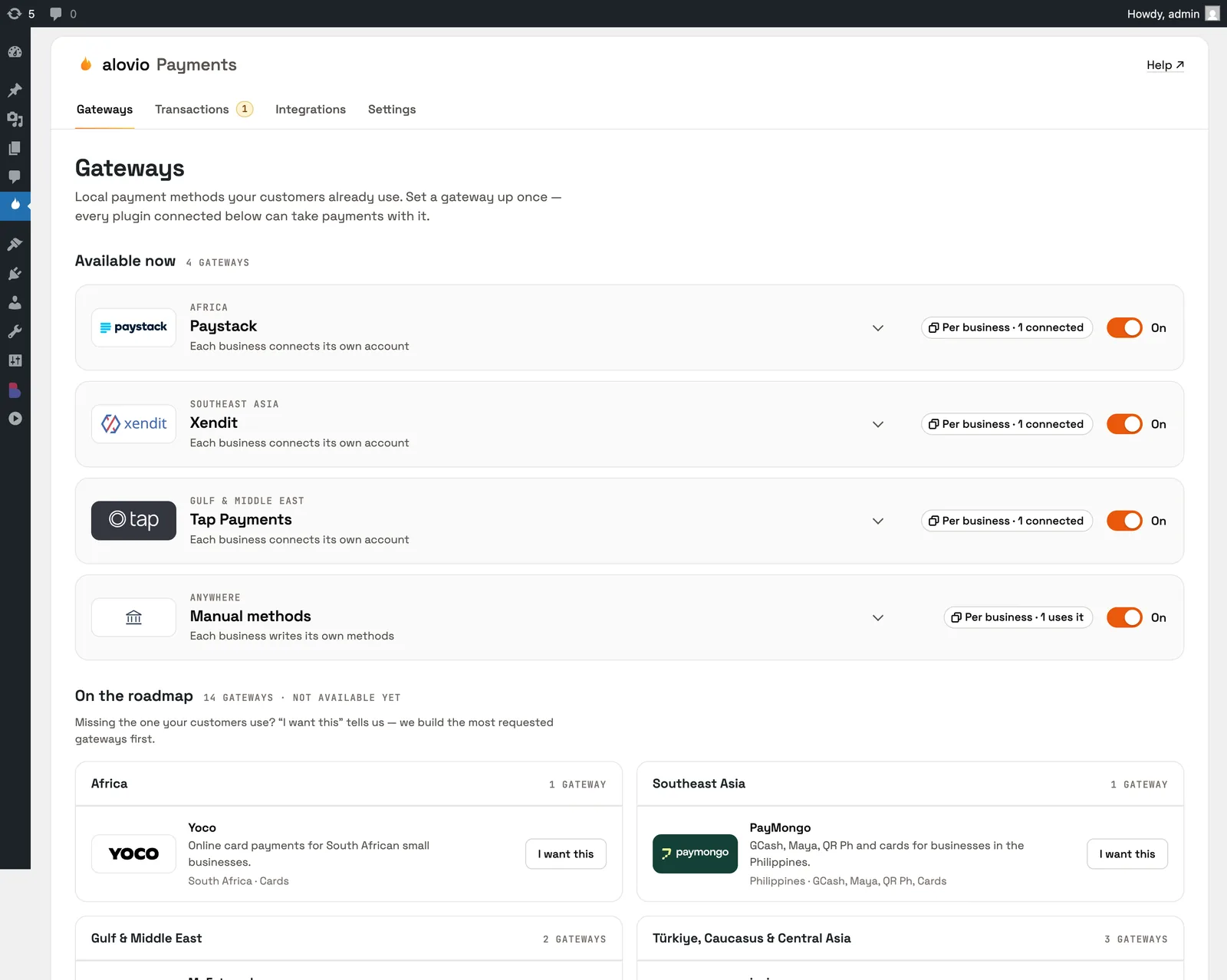
The SaaS owner’s hub in WordPress admin: every gateway, every business’s payments, and the plans that decide who gets what.